
AMBASSADOR PORTAL
A moderated space your ambassadors return to
Channels by topic or program, posts with images and formatting, pinned announcements, and a notification system you control — inside the same portal where members already find their links, campaigns, and rewards.
No second login. No app to install. No Facebook group to moderate.

Most brand communities live somewhere you do not control
A Facebook group, a Discord server, or a group chat nobody wants to moderate.
Another login is another drop-off
Every platform you add is a place members do not go. The community that sits beside their referral link is the one they actually open.
The group has no idea who anyone is
A social platform cannot show that this member just hit a milestone, or invite that one to a campaign. The conversation is disconnected from the program it exists for.
Moderation you did not sign up for
An open group drifts into a support channel, then a complaints channel. Without posting permissions you are choosing between silence and chaos.
How Community works
Channels first, then posts, then the notifications that bring people back.
Create channels
A channel is the unit of organization, much like a Slack channel. Give it a name, a description, and an icon, then decide who is in it — by program, by individual ambassador, or both. Activate it when you are ready. Channels can be edited and reviewed at any point.
Set posting permissions
Choose whether your team alone can post, or your team plus channel members. That single control is the difference between an announcement feed and an open forum, and it is set per channel — so you can run both.
Post, pin, and notify
Write posts with text, images, and formatting, save them as drafts, and publish when ready. Tick Notify channel participants on publish to push it out by email. Pin the ones that matter so they stay at the top instead of scrolling away.
What Community includes
Channels
One community, several rooms
Most brands start with three: an announcements channel their team alone can post in, a general discussion channel open to everyone, and a channel scoped to the top milestone tier that members earn their way into.
Because participation is set by program or by individual, an athlete never lands in a creator thread, and your affiliate program can have a channel about commission that your customer advocates never see.
Channels can be created, activated, reviewed, and edited as the program changes. Nothing is permanent.

Notifications
The part that decides whether anyone comes back
A community with no notifications is a page nobody visits. One with too many is an unsubscribe. Roster gives both sides granular control instead of picking for you.
Your team can subscribe to per-channel email digests at hourly, daily, weekly, or monthly frequency, or switch a channel off entirely — with a default frequency that applies to every new channel added later.
Ambassadors choose their own notification types in account settings, and Roster throttles them so activity cannot flood an inbox. Brand posts notify when you tick the box; peer posts are capped at one email every six hours; comment replies and follow-on comments at one every three.
Placement
It lives where they already are
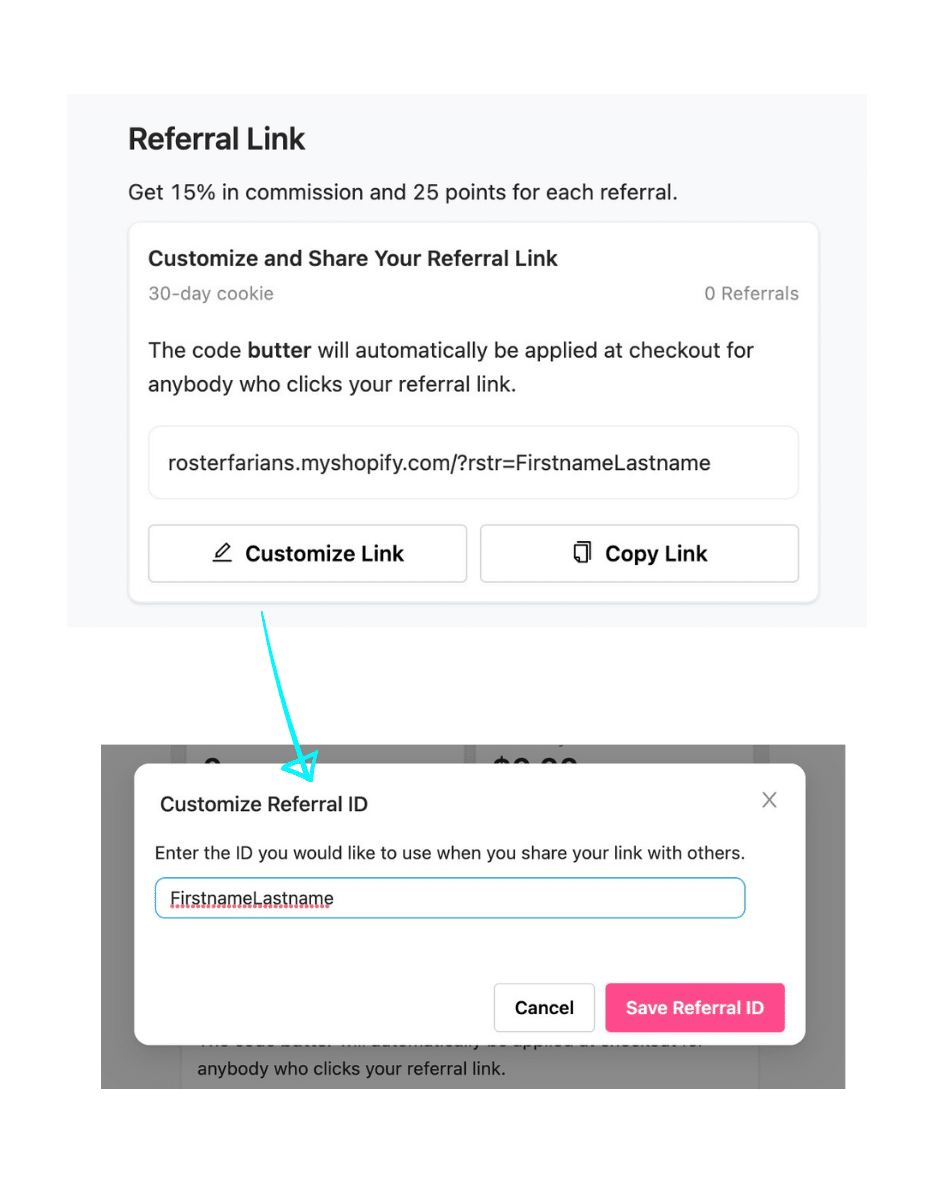
Community is a tab in the ambassador portal, not a separate product. A member signs in with a magic link — no password, no app install — and the community sits alongside their referral link, shareable code, open campaigns, available actions, points balance, and rewards.
That adjacency is the whole argument. Someone who opens the portal to copy their discount code sees your launch announcement on the way past. A Facebook group gets none of that traffic.
Insight
Analytics a social group will never give you
Views, likes, and comments per post, sortable by channel and author, tell you which announcements land and which get ignored. Combined with everything else on a member record — referred revenue, content, points, milestone progress — you can see whether your most engaged posters are also your most valuable ambassadors. On Facebook that question is unanswerable.
Channels worth setting up first
What most mid-market brands land on.
Announcements
Team-only posting. Launches, program changes, deadlines. Members can still like and comment.
Campaign chat
Open posting. Questions about the current brief, answered once instead of forty times in DMs.
Wins
Open posting. Members sharing results, which motivates more effectively than anything your team writes.
Top tier
Scoped to your highest milestone. Access to the room is itself the reward.
A channel can be a milestone reward. Access to the private space is often more motivating than the discount attached to it.
Related features
Questions brands ask
Is this a separate app or login?
No. Community is a tab inside the ambassador portal your members already use for links, campaigns, and rewards. They sign in with a magic link.
Can we create a channel only our team can post in?
Yes. Posting permissions are set per channel — your team only, or your team plus channel members. Either way, members can still like and comment.
Who can see a channel?
Whoever you add. Channels can be scoped to one or more programs, to individually selected ambassadors, or to a combination.
Can we control how often people get emailed?
Yes on both sides. Team members set per-channel digests at hourly, daily, weekly, or monthly, with a default for new channels. Ambassadors pick their notification types, and Roster throttles peer activity to protect their inbox.
Can we keep an important post at the top?
Yes. Pin it to the channel and it stays above new activity until you unpin it.
What can we actually measure?
Views, likes, comments, and last update on every post, sortable by status, author, channel, or pin status — plus everything else on the member record it connects to.